Panda X Panel Permissions Explained
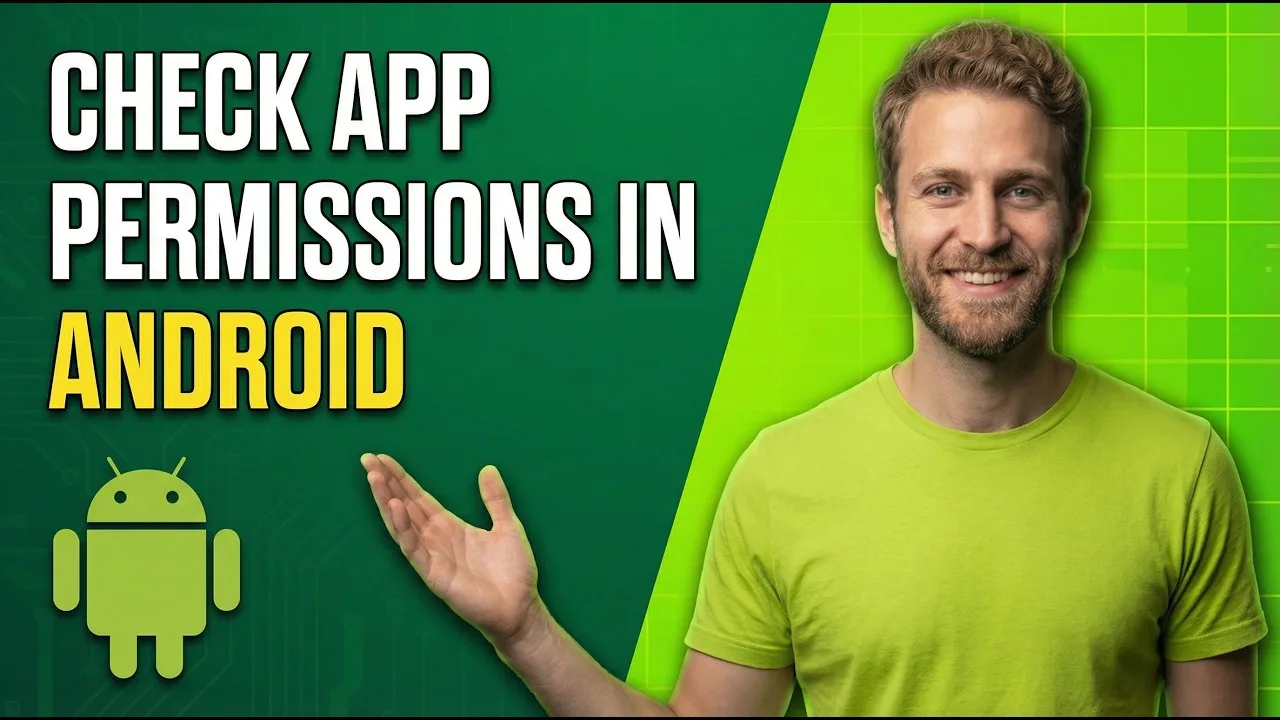
Permission prompts make many users pause, and rightly so. Android asks before an app can reach certain parts of your phone, and understanding those requests helps you decide calmly instead of tapping through in a hurry. This guide explains, in plain language, the kinds of permissions a panel app may request, why they appear, and how you can review or change them later at any time.
Permissions are not permanent decisions. Android lets you allow, limit or withdraw them from system settings whenever you like, and the app should keep working with the choices you make, though some features may behave differently. Knowing where those controls live puts you in charge of the setup from the first day.
Why Android Shows Permission Prompts
Android treats certain actions as sensitive, so the system, not the app, asks for your approval. Displaying content over other apps, reaching stored files, or sending notifications all sit behind these prompts. When Panda X Panel triggers one, it is Android checking that you genuinely want that capability switched on for this particular app on your particular phone.
Prompts usually appear at the moment the related feature is first used, not all at once during installation. That timing is helpful: it connects each request to an action you just took, which makes the reason for the request much easier to judge. If a prompt appears with no clear connection to anything you pressed, back out and look for the feature again more carefully.
The Overlay Permission in Plain Words
Panel apps commonly need permission to appear on top of other apps, because their whole purpose is to present controls while another app is on screen. Android calls this drawing over other apps, and it is granted per app from a dedicated settings list. Without it, the panel simply cannot show itself during play, so this is normally the first permission new users meet.
The context on the Panda X Panel homepage helps you see how this fits into the app overall. Grant the overlay permission only from the official system settings screen that Android opens for you, and check that the toggle you switch belongs to the correct app name. Several similar app names on one phone can make this step confusing if you rush it.
Storage, Notifications and Other Requests
Storage access may be requested when the app saves settings, profiles or configuration files you create. Modern Android versions narrow this access considerably, often limiting an app to its own folders unless you choose otherwise. Notification permission, meanwhile, simply controls whether the app may show alerts in your notification shade, and refusing it should never stop the core panel from working.
The Panda X Panel installation guide shows when these prompts typically appear during first setup, so nothing catches you by surprise. Treat each request individually: allow what matches the feature you are using, and leave the rest off. A permission you never granted can always be granted later in seconds, so there is no cost to starting cautiously.
How to Review and Change Permissions Later
Open your phone settings, find the apps list, select Panda X Panel, and open its permissions page. There you can see every current decision and change any of them. Android also shows a special access section for overlay permission, which lives separately from the standard list. Reviewing this page once after setup is a good habit for any app, not just this one.
If something stops working after you withdraw a permission, the Panda X Panel common fixes can help you connect the symptom to the cause. Many apparent app faults are really permission changes the user forgot making. Restoring the single relevant permission usually resolves the problem immediately, without reinstalling anything or resetting your carefully tuned settings.
Sensible Habits for Any App
Grant permissions when you understand the feature behind them, review them occasionally, and remove access you no longer use. Keep your phone system updated, since permission controls improve with each Android version. Be wary of any instructions, from any source, that tell you to enable broad access you cannot connect to a feature you actually use on your device.
Equally, do not fear the prompts themselves. They are Android doing its job, giving you a clear checkpoint before access is granted. A panel app asking for overlay access is behaving exactly as its design requires. Calm, informed decisions at each prompt produce a setup that is both functional and comfortable for you personally.
A final point worth knowing is that permissions behave slightly differently across Android versions and phone brands. Menu names move, and some manufacturers group special access under their own headings, which is why a friend's instructions may not match your screens exactly. When that happens, use the settings search bar and look for the permission by name rather than hunting through menus. Also remember that a fresh installation asks again from the beginning, so a reinstall is a natural moment to review every choice with the understanding you have now. None of this requires expertise; it only requires the habit of reading each prompt as a question you are allowed to answer slowly, in your own time, with the option to change your mind later.
Final Thoughts
Permissions are simply choices, presented by Android and controlled by you. Understand what each request connects to, grant only what your usage needs, and remember that every decision can be revisited in settings at any time. With that mindset, the prompts stop being interruptions and become what they were designed to be: quick, clear moments where you stay in charge of your own phone.