How to Update Panda X Panel Safely
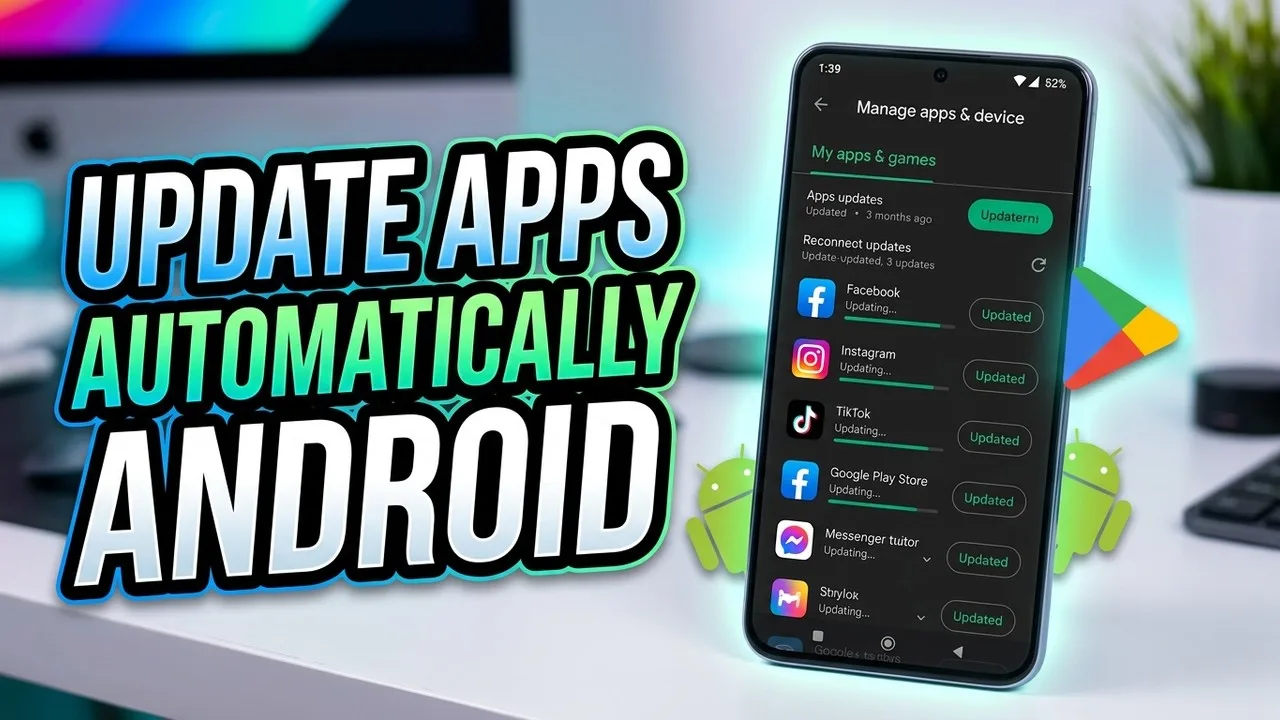
Updates should feel routine, not risky. Yet many users have had the experience of updating an app and finding their carefully tuned setup altered, or the app behaving differently in ways they did not expect. A little preparation removes nearly all of that anxiety. With your settings recorded and a few calm checks afterwards, updating Panda X Panel becomes a five-minute maintenance task instead of a gamble.
This guide covers the whole cycle: what to record before you update, how to approach the update itself, and what to verify afterwards before you trust the new version in a session that matters. It also explains what to do if the updated app misbehaves, so you always have a clear next step.
Record Your Settings Before Anything Else
The single most valuable update habit is a settings record. Screenshot each screen of values you have tuned, or write the important numbers in a note. It takes two minutes and it converts any update surprise from a disaster into a minor inconvenience, because a setup you can see is a setup you can rebuild exactly, at your own pace, without guessing.
Note also anything unusual about your current setup: permissions you granted, layout choices you made, and any workarounds you applied for your specific phone. The pre-update walkthrough on Panda X Panel setup guide gives useful context for what a standard setup looks like, which helps you spot which parts of your own setup are personal and therefore worth recording carefully.
Update at a Calm Moment
Choose a quiet time to update, never the minutes before a session you care about. Make sure the phone is reasonably charged and connected to a stable connection, and let the update finish completely without switching away or restarting the phone midway. Interrupted updates cause a surprising share of post-update problems that get blamed on the new version itself.
After the update completes, open the app once and simply look around. Menus may have shifted slightly, and a calm first tour prevents confusion later. Check that your recorded settings still match what the app shows, screen by screen, and correct anything that has changed before you play. Five unhurried minutes here save a frustrating session later.
What Typically Changes in an Update
Updates usually bring a mix of small things: fixes for known issues, compatibility adjustments for newer Android versions, layout refinements, and occasionally new options in familiar sections. Reading any provided release notes, even briefly, tells you what to expect and which areas deserve a closer look after updating on your own device.
If the updated app does misbehave, work through the Panda X Panel troubleshooting fixes methodically before assuming the version is broken. Clear temporary data, restart the phone, and verify permissions, since updates can occasionally reset a system-level choice. Most post-update oddities resolve with those basic steps, and your recorded settings make any deeper recovery straightforward.
When You Are Updating From an Old Version
Jumping several versions at once deserves extra care. Interfaces may have moved more substantially, and some old habits may no longer apply. After such an update, treat the app almost like a fresh install: tour the sections, rebuild your setup from your notes, and test in relaxed sessions before playing seriously with the new arrangement.
Users coming from a much older version may also find the Panda X Panel installation steps worth re-reading, because preparation and first-launch checks have often improved alongside the app. A few minutes of reorientation after a big jump is normal and healthy, and it prevents the common mistake of judging a new version harshly simply because familiar things have moved.
Keep a Simple Update Routine
Turn updating into a small routine you repeat each time. Record settings, update at a calm moment with a charged phone, tour the app, compare settings against your record, test briefly, and only then play normally. Written once and followed each time, this sequence removes the uncertainty that makes many users delay updates for months and miss useful fixes.
Delaying updates indefinitely is its own risk, since compatibility fixes matter as Android itself changes around the app. A calm routine keeps you current without drama. If you support friends or family with their setups too, teaching them the same six steps will save everyone the classic post-update confusion that fills so many help threads.
It is worth knowing why some users report that an update changed their feel even when release notes mention nothing about settings. Small fixes to timing, response or compatibility can subtly alter how familiar values behave, which is another reason the post-update test session matters. If the feel has shifted slightly, treat it as a mini tuning task: start from your recorded values, adjust the one area that feels different in small steps, and update your records once it feels right again. Most users need only a few minutes of this. Approaching it methodically keeps a minor shift from being misread as a broken app, and it keeps your documentation accurate for the next cycle.
Final Thoughts
Safe updating is mostly preparation: a recorded setup, a calm moment, and a short verification tour afterwards. Follow that pattern and new versions of Panda X Panel become what they should be, a quiet source of fixes and improvements, rather than a threat to the settings you worked hard to tune. Your future self, mid-session with everything working, will be glad you spent those two minutes on screenshots.